Most docking station troubleshooting guides give you the same seven generic steps — check the cable, restart, update drivers — regardless of why the connection actually failed. Those steps sometimes work by accident. Diagnosing it means checking the links in the actual chain in order, from the physical connection outward to the thing most guides skip entirely: what kind of dock you actually have.
Diagnose in this order
Each step below only matters if the ones before it check out — there’s no point debugging bandwidth if the cable isn’t even seated.
- Physical connection — cable fully seated at both ends, on the correct monitor input, dock powered on with its own power supply connected (many docks won’t drive an external display on USB bus power alone).
- Monitor input — the monitor is set to the input you actually connected, not a different one it remembers from before.
- Dock architecture — which of the three fundamentally different dock designs you have (below) — this determines which of the remaining steps are even relevant.
- Laptop port capability — whether the specific USB-C/Thunderbolt port you’re using actually carries a display signal at all. See DisplayPort Alt Mode.
- Display pipe limit — whether your laptop’s GPU can drive as many simultaneous displays as you’re asking for, independent of how many ports the dock has.
- Requested mode vs. available bandwidth — whether the resolution/refresh rate you’re asking for fits through the dock’s actual output. See DisplayPort Bandwidth Explained.
- Evidence gaps — when none of the above resolves it, what’s actually unverified rather than actually broken.
Step 3 is the one most guides skip: what kind of dock is this?
“Docking station” describes three structurally different technologies that happen to look similar from the outside, and they fail differently:
- Native DisplayPort Alt Mode / Thunderbolt docks pass a real DisplayPort signal straight through from the laptop’s port to the dock’s output — the dock is closer to a passive signal splitter for video than an active converter. If the display doesn’t work, the laptop port not supporting Alt Mode is a common root cause (Step 4), since the dock never receives a video signal to forward.
- DisplayLink-based docks use a USB-attached GPU chip that receives compressed frame data over ordinary USB and renders it into a display output — this works even from ports that have no DisplayPort Alt Mode at all, but depends on the correct DisplayLink driver being installed and running, which is a completely different failure mode (a missing/outdated DisplayLink driver, not a hardware Alt Mode gap) than a native dock ever has.
- Thunderbolt docks are a certified superset of native DisplayPort Alt Mode — Thunderbolt’s own specification requires DisplayPort Alt Mode support, so a genuine Thunderbolt port is guaranteed to carry video, but Thunderbolt docks add their own PCIe/USB4 tunneling stack, which introduces its own driver and firmware update surface as a possible failure point.
Knowing which of these three you have changes where you should actually look: a DisplayLink dock with a monitor that won’t light up is a driver problem far more often than a bandwidth problem, while a native/Thunderbolt dock with the same symptom is far more likely to be a laptop-port-capability or bandwidth problem than a driver problem.
Step 4: does your laptop’s port actually carry video?
On a native Alt Mode or Thunderbolt dock, the dock only outputs what it receives — if the specific USB-C port you plugged into doesn’t implement DisplayPort Alt Mode, no dock feature fixes that, because there’s no video signal reaching it in the first place. See DisplayPort Alt Mode for how to verify this against your laptop’s own port-level documentation. This step doesn’t apply to DisplayLink docks in the same way, since they don’t depend on Alt Mode being present on the port at all.
Step 5: the ceiling nobody mentions — GPU display pipes, not dock ports
A dock having three video outputs does not mean your laptop can drive three simultaneous external displays through it. The number of independent display outputs a laptop can actively drive at once is a property of its GPU, not of the dock — a common, specific, and well-documented example being integrated GPUs on Apple Silicon Macs, which cap the number of simultaneous external displays a given chip supports regardless of how many ports a dock offers. If your first external monitor works but a second or third won’t light up on an otherwise identical dock, this ceiling — not the dock, not the cable — is the first thing to check against your specific laptop/GPU’s documented display output limit.
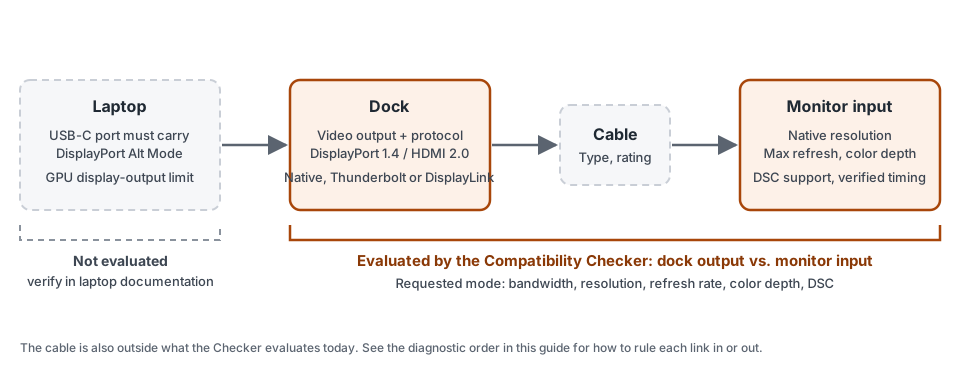
The public Compatibility Checker evaluates a dock’s output against a monitor’s input — it does not currently evaluate a specific laptop’s port capability (Step 4) or its GPU’s display-pipe limit (Step 5). Those are real, common failure causes this guide can help you reason through, but you’ll need to verify them against your laptop’s own documentation separately; the Checker’s result won’t reflect them.
Steps 6 and 7: bandwidth and evidence gaps
If the dock architecture and laptop port both check out, the remaining question is whether your specific requested mode — resolution, refresh rate, color depth — actually fits through the dock’s output given its protocol and version. This is exactly what CompatSense’s Checker verifies against sourced specifications, and exactly what happens when it can’t verify enough to answer: it says so explicitly (an honest “we don’t have enough evidence” result) rather than guessing at either “compatible” or “incompatible.”
The Dell WD22TB4 delivers up to 130W of Power Delivery to Dell laptops specifically, but only up to 90W to non-Dell laptops, per Dell’s own documentation — the identical dock, a genuinely different real limit depending on what’s plugged into it. It’s a useful reminder that a dock’s behavior isn’t always uniform across every laptop brand, even when the display connection itself works fine.
What generic troubleshooting gets right (and it’s still worth doing first)
- Reseat the cable at both ends, and try a different port on the dock if it has more than one output.
- Confirm the dock has its own power adapter connected and powered, not just USB bus power.
- Restart the laptop after connecting — display negotiation sometimes only runs cleanly on boot.
- For DisplayLink docks specifically, confirm the DisplayLink driver is installed and up to date — this one is architecture-specific, not universal, per Step 3 above.
Once the physical connection, dock architecture, and laptop port are ruled out, check whether your specific dock and monitor can actually deliver the mode you want.
Check compatibilitySources
- Dell WD22TB4 User Guide
- DisplayPort Alt Mode for USB Type-C